Account & Sizing Setup
TradeBridge features a single centralized configuration managed via the **Control Center**. Rather than managing complex groups, you define a single **Leader Account** at the top, and enable and configure individual **Follower Accounts** in the settings grid below.
1. Selecting the Leader
At the top of the **Settings** screen, configure the source of your copied trades:
- Leader Platform: Choose
NT8(NinjaTrader 8) orQuantower. - Leader Account: Select your source account from the dropdown of active detected accounts. Manual typing is available as a fallback only if the runtime platform is not connected yet.
2. Configuring Followers
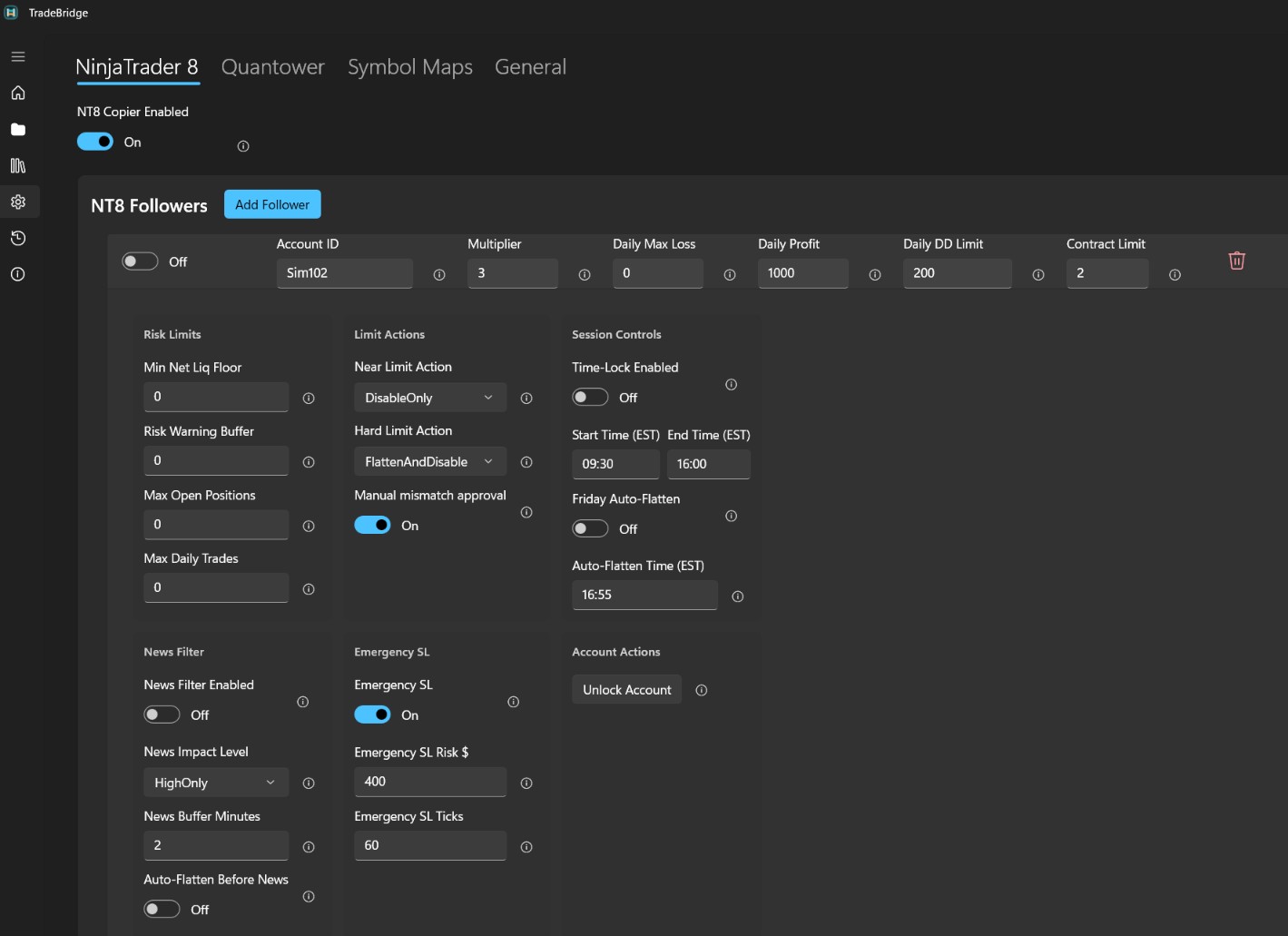
In the Follower accounts settings grid, every discovered account from NinjaTrader 8 and Quantower appears as a row. You can configure each account individually:
- On (Toggle): The master switch to enable or disable copying for that specific follower account.
- Account ID: The discovered account name/identifier.
- Multiplier: A decimal value controlling the contract size scaling (e.g.
1.0= same size,2.0= double size,0.5= half size). - Daily Max Loss: The maximum loss limit allowed for the session. If breached, the copier triggers your configured Hard Limit Action.
- Daily Profit Target: Target profit limit. When reached, copying is disabled to lock in your gains.
- Trailing Drawdown Limit: The maximum trailing drawdown floor calculated dynamically from your session high watermark.
- Account Balance Floor (Min Net Liq): An absolute liquidation value floor (e.g.,
$48,500on a $50K account). If equity breaches this level, copying stops immediately. - Contract Limit: Hard cap on total exposure, calculated in mini-contract equivalents (e.g.,
1 NQ = 1.0,10 MNQ = 1.0). - Max Open Positions: Limits the maximum number of separate positions/instruments that can be open concurrently.
- Risk Warning Buffer: Pre-breach alert zone buffer. When approached, triggers the Near Limit Action.
- Near/Hard Limit Actions: Configurable actions upon approaching or breaching safety limits (
WarnOnly,DisableOnly,CancelOrders, orFlattenAndDisable). - Require Manual Approval for Mismatches: When active, displays a mismatch decision prompt on the Dashboard rather than resolving discrepancies automatically.
- Max Daily Trades: Limits the count of flat-to-entry execution cycles per trading session.
- Time-Lock Window: Restricts entry order replication to a specific timeframe (e.g.
09:30to16:00EST). - Friday Auto-Flatten: Closes active positions and cancels orders on Friday afternoon to avoid weekend gaps.
- News Filter: Blocks entry orders or flattens active positions around high-impact economic calendar events.
- No Mixed Contracts: Prevents blending mini and micro contracts for a single position during execution.
- Round Micro to Mini: Controls contract rounding behavior when scaling micro fractions.
- External Defer Max (ms): The maximum timeframe to wait for normal brackets to arrive from the leader platform before placing fallback local protective stops.
- Daily Loss Reset Time: Custom daily reset time (e.g.
17:00EST) for PnL tracking and trade counters.
3. Sizing Optimization & Fee Mitigation (Mini/Micro)
One of TradeBridge's most advanced and cost-saving features is its automated **Mini / Micro contract optimization**. Trading multiple micro contracts can result in high broker commission fees. To solve this, TradeBridge converts micro positions into standard mini contracts whenever possible, while maintaining absolute mathematical replication.
How it Works (With Examples)
Assume you trade micro contracts on your leader (e.g., MNQ), and your follower has a multiplier of 3.0. If you execute a trade of 5 MNQ on the leader:
The scaled equivalent is 15 micro contracts (which equals 1.5 standard mini contracts, since 1 mini NQ = 10 micro MNQ). TradeBridge gives you these practical execution modes:
- Option A: Fee Optimization: With Optimize Mini/Micro Contracts enabled, TradeBridge automatically splits the trade into 1 standard mini (NQ) + 5 micros (MNQ). This significantly reduces your transaction fees by replacing 10 micros with 1 mini, while preserving the exact 15-micro sizing.
- Option B: Exact Mapped Instrument: If you want to keep the position entirely in the mapped micro or mini instrument without mixed optimized sizing, turn Optimize Mini/Micro Contracts OFF and use the Symbol Mapping grid to force the target instrument.
- Option C: Custom Multipliers: Adjust each follower's multiplier to control final quantity before optimization or symbol mapping is applied.
Here are more examples of size scaling and conversions based on your settings:
| Leader Trade | Follower Multiplier | Optimize Mini/Micro | Resulting Mode | Resulting Follower Trade |
|---|---|---|---|---|
| 5 MNQ (Micro) | 2.0 | Enabled (ON) | Optimized exact size | 1 NQ (10 micros optimized to 1 mini) |
| 5 MNQ (Micro) | 3.0 | Enabled (ON) | Optimized mixed mini/micro | 1 NQ + 5 MNQ (15 micros optimized to 1 mini + 5 micros) |
| 5 MNQ (Micro) | 3.0 | Enabled (ON) | Optimization OFF + mapping to mini only | 1 NQ or 2 NQ, depending on the multiplier and mapping rule you choose. Validate rounding behavior in SIM before live use. |
| 5 MNQ (Micro) | 3.0 | Disabled (OFF) | Exact mapped instrument | 15 MNQ (Exactly 15 micros, no conversion) |
| 4 NQ (Standard Mini) | 0.3 | Enabled (ON) | Optimized mixed mini/micro | 1 NQ + 2 MNQ (1.2 NQs optimized to 1 mini + 2 micros) |
| 1 NQ (Standard Mini) | 0.5 | Enabled (ON) | Optimized micro remainder | 5 MNQ (0.5 minis converted to 5 micros) |
4. Manual Mismatch Approval
The **Manual mismatch approval** setting (configured via the toggle) is a powerful tool to prevent incorrect copying or execution slippage:
- When Enabled (On): If a position size or symbol mismatch is detected between the leader and follower, TradeBridge generates a pending decision alert in the Dashboard instead of sending an automatic market sync. You can manually choose to click Sync Follower, Ignore, or Flatten Account in the Dashboard.
- When Disabled (Off): The local Named Pipe runtime will automatically attempt to reconcile the mismatch by placing compensating market orders after its configured grace period.
5. Leader Flat Cleanup & Grace Delay
These parameters prevent orphaned positions and trailing stop leaks on followers when the leader flatlines:
- Cleanup Followers When Leader Flat (Toggle): When enabled, if your Leader account becomes flat (no positions) and has no working orders, TradeBridge automatically cancels all working orders and flattens all follower accounts after the grace period.
- Leader Flat Cleanup Grace (ms): The delay in milliseconds before the cleanup is executed (default:
1000ms / 1 second). This delay prevents false-triggers during slow broker execution updates.
6. Symbol Mapping Grid
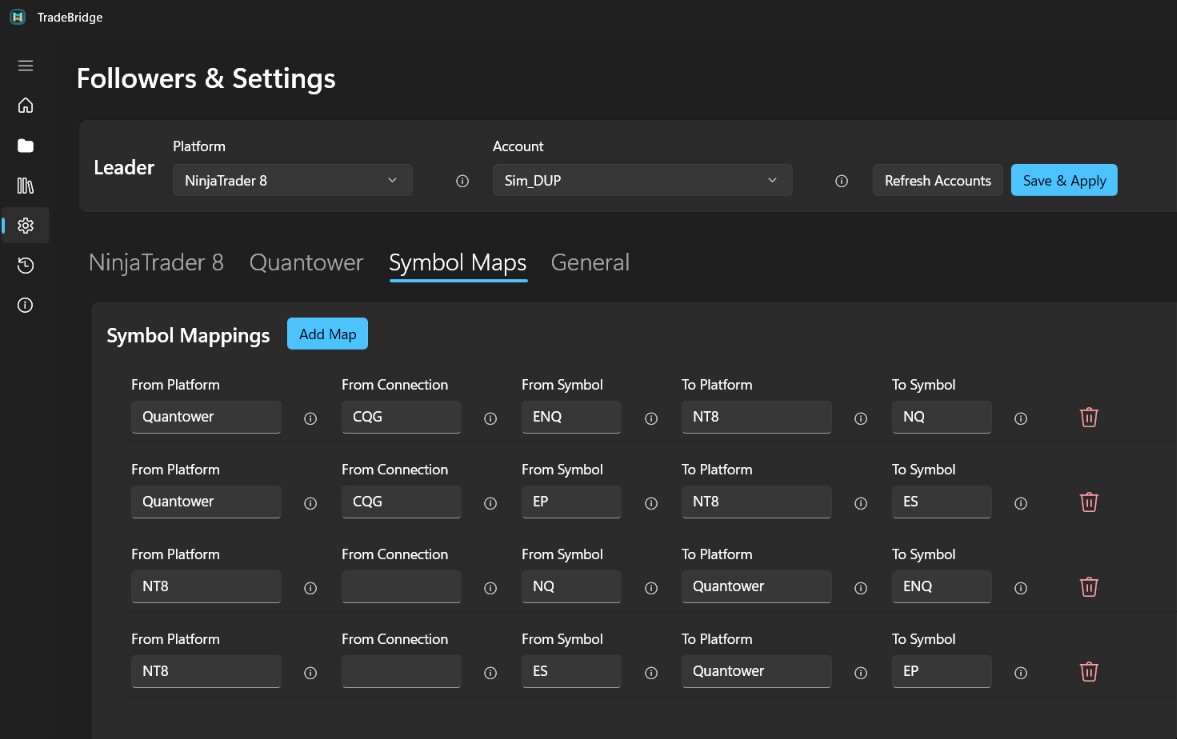
The **Symbol Map** settings grid allows you to configure exact translation rules when the leader and follower platforms use different naming conventions (e.g. Rithmic vs dxFeed) or when trading different instruments:
- From Platform: Platform where the leader order originates (
NT8orQuantower). - From Connection: Optional feed filter (e.g.
CQG,Rithmic,dxFeed). Leave blank to apply to all connections. - From Symbol: Leader-side symbol root (e.g.,
ENQorEP). Root maps are preferred over month-specific contracts. - To Platform: Follower platform where this symbol should be translated.
- To Symbol: Follower-side symbol root (e.g.,
NQorES). The copier automatically resolves the correct front contract month when translating.
7. Saving Configurations
After modifying settings, click Save & Apply or Save & Apply All. This writes your config to the JSON files (config\follower-accounts.json for Quantower and config\nt8-follower-accounts.json for NT8) and instructs the local named pipe runtimes to hot-reload settings.
8. External Charting & Execution Platforms (TradingView, Jigsaw, ATAS, Bookmap, MotiveWave)
One of the major benefits of TradeBridge's local Named Pipe architecture is that you do not need to place trades inside the NinjaTrader 8 or Quantower user interface to copy them.
If you prefer to chart and execute on third-party platforms that connect to your Tradovate or Rithmic account, TradeBridge can still copy your trades. Your gateway platform (NinjaTrader 8 or Quantower) must be active on your PC and connected to the same execution account, and the broker/platform must publish the account/order events to that local gateway.
Supported External Leads & Integrations
- TradingView (via Tradovate): You can log into your Tradovate account directly inside TradingView's Trading Panel. Any order you execute on your TradingView charts goes to Tradovate's servers, which can publish the account/order event to your running local NinjaTrader 8 or Quantower gateway when simultaneous sessions are supported.
- Jigsaw daytradr: Jigsaw has direct integration with Tradovate. Placing orders through Jigsaw DOM routes them through your Tradovate account; TradeBridge can copy them after the local gateway receives the account/order event.
- ATAS (Order Flow Trading): You can configure your Tradovate login natively in ATAS. Executions travel to the broker first, then can sync down to NinjaTrader 8 or Quantower for local copying when the account connection supports it.
- Bookmap: Bookmap features a native Tradovate connector for pulling real-time market data and executing orders directly from the chart. Fills can be synchronized to the local gateway and copied when the broker/platform emits the required events.
- MotiveWave: A premium desktop platform popular for Elliott Wave analysis and algorithmic strategies. MotiveWave offers a full Tradovate integration, letting you route orders from MotiveWave charts while TradeBridge replicates them to your followers.
How it Works:
- Simultaneous Account Connection: Ensure that the broker connection you are using for execution in your charting software (e.g., your Tradovate account inside TradingView or Bookmap) is connected and active at the same time inside NinjaTrader 8 or Quantower on your local computer.
- Runtime Detection: Since both platforms are connected to the same account simultaneously, any order you place on the external tool executes at the broker level, and the broker pushes the execution/order notification back to active connections, including your running local NinjaTrader 8 or Quantower platform when supported.
- Local Copying: TradeBridge captures the incoming platform event locally and dispatches copy requests to enabled follower accounts. Local dispatch is fast, while final acknowledgement and fills depend on platform and broker timing.
Simultaneous Session Support: This setup requires that your broker or data feed provider allows concurrent sessions (simultaneous connections) to the same account. For example, Tradovate supports concurrent sessions natively for free. CQG and Rithmic may support concurrent sessions depending on broker, feed setup, and plan. Some brokers or data providers may charge an additional fee for concurrent sessions. Check with your broker or feed provider before planning a multi-platform setup.
No External Chart Add-On Needed: You do not need to load any TradeBridge indicators or templates on TradingView, Bookmap, ATAS, Jigsaw, or other external charting tools. The required TradeBridge component runs in NinjaTrader 8 as an Add-On or in Quantower as the receiver strategy.